You're scrolling through your Instagram feed only to stumble upon a post featuring a highlight you don't want anyone to see. You recently created a professional profile and need to edit the highlights accordingly, but you can't figure out how to do it. Fortunately, you don't have to worry about this anymore. In this article, I'm going to show you how easy it is to delete highlights on Instagram. From deleting individual stories in a highlight reel, to removing the entire highlight from your profile altogether; by the end of this article, you'll know exactly what steps to take so that all traces of unwanted highlights are gone!
Accessing the Highlight Creation Tool
Do you want to delete a highlight but don't know where to start? Instagram's Highlights feature makes it easy to organize and showcase your content in a personal way. But if you want to delete a highlight, you'll need to know how to access the highlight creation tool.
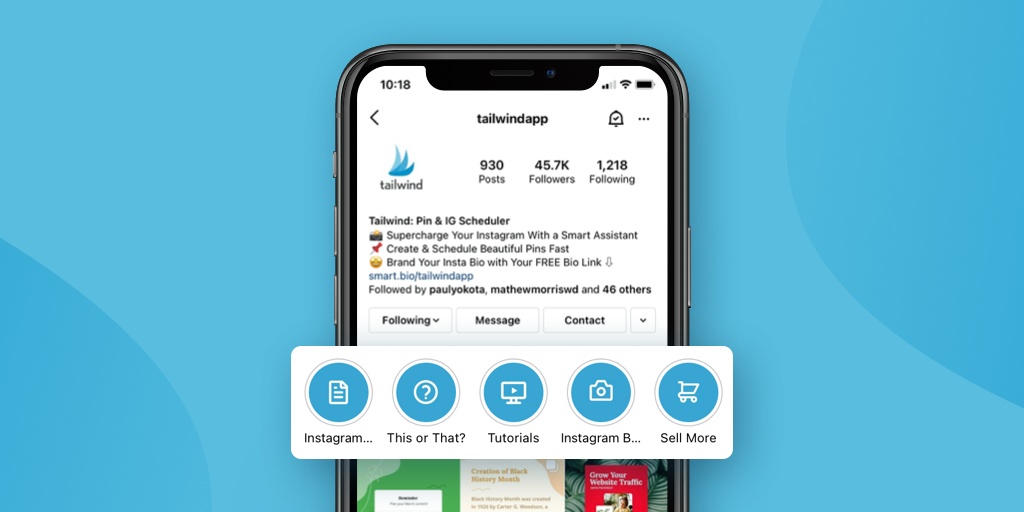
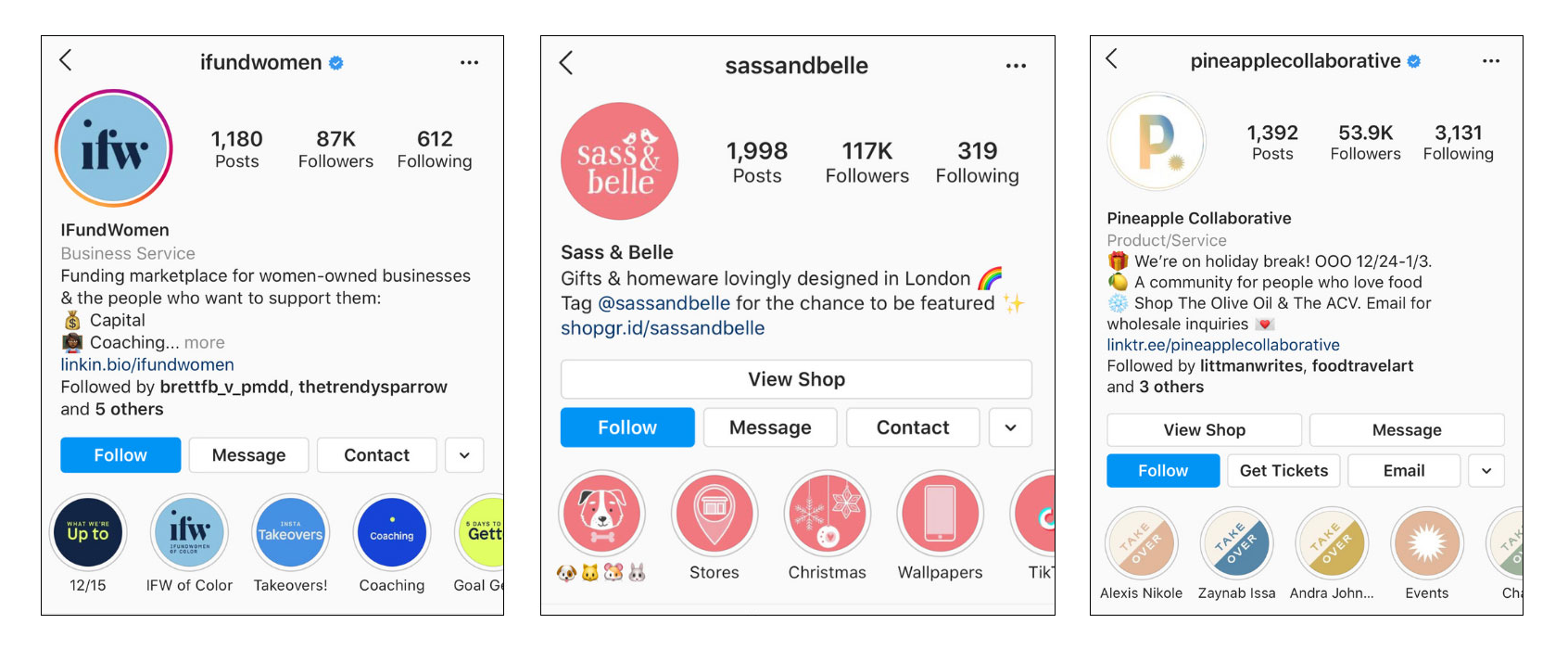
Luckily, it's pretty straightforward. Your highlights live on your profile page, right under your bio. There you can open, edit or delete existing highlights, and the plus button lets you create new ones.
If you only want to remove a single story, open the highlight, go to that story, tap More (the three dots) and choose "Remove from highlight". The story stays in your archive, so nothing is lost.
Removing Highlights From Instagram
Sometimes, one of your Instagram Highlights just doesn’t look as great as it did when you created it. Whether you made an embarrassing mistake or just no longer like the look of your highlight, removing highlights on Instagram is easy. Here’s what you need to know.
The quickest way is to go to your profile, press and hold the highlight you want to remove and tap "Delete highlight". Confirm, and it's gone from your profile. If you're a perfectionist and only want to remove one photo or video, open the highlight, tap More on that story and choose "Remove from highlight".
Editing and Deleting Highlight Stories

It’s easy to delete a highlight if you’ve changed your mind about what you want to keep and what you don't. To begin, open your Instagram profile and locate the story highlight reel. Long press the highlight that contains the stories you want to delete. This will open a new menu that gives you two options: ‘Edit Highlight’ and ‘Delete Highlight’.
If all you want to do is edit the look of or rearrange the stories within a highlight, then simply select 'Edit Highlight'. This will allow you to change cover image of the highlight, add stories from your archive, remove stories from it, or rearrange them in any order you choose.
On the other hand, if you've decided to delete an entire highlight altogether, then select 'Delete Highlight'. Once selected Instagram will prompt with a pop-up window asking if you are sure. Once confirmed, all stories previously included in this highlight will be removed from it and stored in your archive for future use.
It's as easy as that! With just a few clicks of a button, you can easily edit or delete highlights on Instagram— no stress required!
Alternatives to Deleting Your Highlight Folders
If you don't want to delete your entire highlight folder, there are a few other options.
Update Your Highlight Folder
You can go into your highlights and make sure you update them with the most recent content you want featured. This can help keep them looking fresh and up-to-date without deleting the folder. Just head to the desired highlight folder, tap the ‘Edit Highlight’ button, and then add any new content that you want included in your Highlights.
Change the Title of Your Highlight Folder
If you don't like the title of a highlight anymore, you can change it. Press and hold the highlight, tap "Edit highlight" and type a new title. You can change the cover image there too.
Delete Stories from Your Highlight Folder
You can also remove single stories but keep the highlight. Open it, tap More on the story you don't want anymore and choose "Remove from highlight".
What Happens When You Remove a Highlight Folder
To remove a highlight, press and hold it on your profile and tap "Delete highlight". The highlight disappears from your profile, but the stories in it are not deleted. They stay in your Stories archive, where only you can see them. Your posts are not affected at all.
Keep in mind that screenshots or screen recordings other people made of your stories won't disappear when you delete a highlight.
Why It’s Important to Monitor Your Highlights
Are you someone who goes on Instagram to capture memories and save them for future memories? Or maybe you use Instagram to share your creative work with your followers. Either way, it's important to make sure that your Highlights reflect what you want them to. It's also essential to make sure that they stay up-to-date with the most relevant content. That's why it's important to monitor your Highlights and delete any outdated or irrelevant items periodically.
Conclusion
In conclusion, deleting a Highlight on Instagram is as simple as navigating to your profile page, clicking the Highlight feature, and selecting the option to remove the Highlight. Although deleting a Highlight may seem like a hassle, it's important to remember that it will help keep your profile tidy and organized. Once a Highlight is deleted, you can create new ones if you want with updated posts and stories that show off your best content. Since Highlights are designed to stay on your profile for a longer period of time, it's important to periodically go in and delete any Highlights that are no longer relevant to you. So go ahead and get organized and delete those Highlights!