Whether you're an avid TikTok user or just decided to dip your toes in its pool, getting stuck with error 2433 is no fun. If you've tried almost everything to fix it, no worries, there's still hope! TikTok doesn't publish an official explanation for this error code, but users usually see it when the app can't load content. The most common causes are a weak connection, an outdated app or a temporary problem on TikTok's side. Luckily, it's usually easy to fix once you know how to troubleshoot. Below, we'll walk through some tips that get you back to scrolling in no time!
Overview of TikTok Error 2433
Error 2433 can be one of the most frustrating things you experience when using TikTok. But don't worry, there are some solutions that can help you fix the issue. First off, let's take a quick look at what Error 2433 is and why it happens. In most cases, error 2433 is a connection problem that prevents certain content on TikTok from loading properly. This is typically caused by either a weak or unstable internet connection on your end, or by some issue with your device's network settings.
To fix this problem, simply try restarting your device and reconnecting to a stable Wi-Fi network or cellular data connection. If that doesn't solve the issue, it's possible that changing some of your network settings may help get rid of Error 2433. You may want to experiment with disabling certain features like VPNs or proxies if they're enabled on your phone or tablet. If you're still experiencing the error after trying all of the above solutions, visit the support page for TikTok for more specialized help and advice related to Error 2433.
Reasons for Receiving the Error Message
If you are facing Error 2433 on TikTok, you may be wondering why this issue is happening in the first place. The error message typically appears when there is an issue with the platform's servers, or when the app stops working properly due to software changes. Additionally, users may also face error 2433 if their device's operating system is out of date or if they have existing app issues from a previous version of TikTok.
To fix error 2433, you'll need to identify and address the source of the problem. First, check for any updates to TikTok and make sure your device's operating system is up-to-date. If that doesn't help, contact the app's support service for more specific troubleshooting advice (e.g., clearing cache). You may also consider uninstalling and reinstalling the app. Don't download older versions of TikTok from other websites, though, because those files can contain malware.
How to Fix Error 2433 on TikTok
Having trouble with Error 2433 on TikTok? You're not alone, and the good news is that there's something you can do about it. Below are different ways to fix the error.
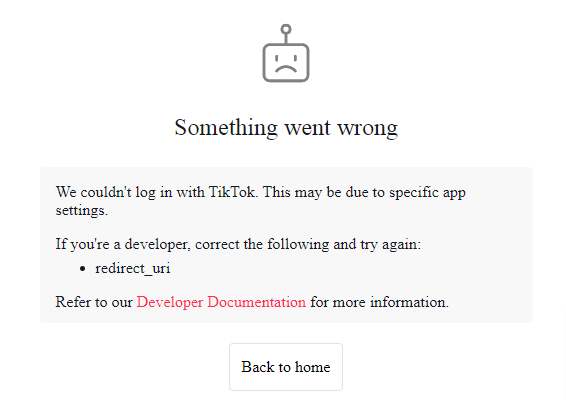
Contacting the TikTok Customer Support Team
Fixing this error might take a bit of determination, but it's worth it—especially if you want to keep using your account. One thing you can do is to contact the TikTok customer support team. They should be able to help you troubleshoot the issue and get your account back up and running.
To get in touch with them, you'll need to:
- Open the app, go to your profile page, and tap the "Me" icon
- Tap the three-dot menu icon in the upper-right corner
- Tap "Help and Support"
- Tap on "Feedback"
- Fill in your contact information and provide as much detail as possible
- Submit your request to the TikTok customer support team
Once they receive your request, they'll investigate and respond with a resolution as soon as possible. Good luck!
Clearing Cache and App Data
Error 2433 on TikTok is one of the most common errors on this app. Fortunately, there’s a simple way to fix it. All you have to do is clear the cache and app data associated with TikTok.
Clearing these files can help the app run smoother and more efficiently, as it removes any potentially corrupt or outdated files that may be causing the issue. To do this, you'll need to:
- Open your phone's Settings App
- Choose Apps/Manage Apps
- Select TikTok
- Tap Storage
- Click Clear Cache and Clear Data
- Restart the app
Uninstalling and Reinstalling TikTok
If you're still stumped on how to fix Error 2433 on TikTok, then it might be time to uninstall and then reinstall the app. This is a great way to make sure that everything is up-to-date, and that any glitches or issues with the app have been taken care of.
When it comes to uninstalling and reinstalling TikTok, here are the steps:
- On your device, go to your settings and select Apps & notifications.
- Select TikTok in the list of installed apps.
- Select Uninstall and follow the on-screen prompts to complete the process.
- Once it has been successfully uninstalled, visit your device's app store (Google Play Store or Apple App Store) and download TikTok again.
- Log back into your account using your credentials once the download is complete, and you should be able to get back into TikTok without any issues!
Checking for Android Software Updates
If you're using an Android device, the next step for troubleshooting Error 2433 is to check for software updates. Updating your device's operating system can often fix various issues like Error 2433. Here's how:
- On your Android device, go to Settings > About Phone > System Updates
- If a system update is available, tap “Download and Install"
- Your device will begin downloading the update and automatically install it once the download is complete
Keep in mind that each manufacturer’s updating process may be different, so make sure you check their website for specific instructions on how to update your device’s software. Additionally, some phones may have automatic updates enabled, so this step might already be done for you. You can also check your phone's manual or user guide to find out if there are any new software updates available for your model of phone or tablet.
Resetting Network Settings for Android Devices
If you're an Android user and you're still facing Error 2433 on TikTok, it could be worth resetting your device's network settings. Doing this will clear any cached data, which could be blocking the connection to TikTok.
Here’s how to reset network settings on an Android device:
- Head to the ‘Settings’ tab on your device and scroll down to ‘Backup and reset’.
- Tap ‘Network settings reset’ in the menu options.
- A warning will appear – read it and confirm by pressing ‘Reset Settings’.
- After a few moments, your device will restart and you should be able to access TikTok once again - try now and see if Error 2433 has been fixed!
Ways to Identify Other Errors on TikTok
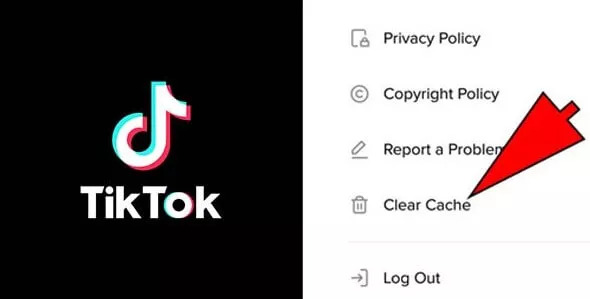
It's also important to be able to identify other errors that might be occurring on TikTok, so that you can take the necessary steps to fix them. Here are some common errors you might encounter:
- Error 1201: This is an error code that usually indicates an issue with the app itself, and it usually requires updating or reinstalling the app.
- Error 400: This error usually occurs when there is a problem with your internet connection, or if your device doesn't have enough storage space.
- Error 2203: This error usually means that there is a problem with your account or device settings. It could also mean that you've been temporarily banned from using TikTok.
Identifying these various errors, you can take the appropriate steps to troubleshoot them and get back to watching your favorite TikTok videos!
Tips for Avoiding Error 2433 in the Future
The best way to avoid error 2433 on TikTok is to be proactive and take steps to prevent it from happening. Here are some tips that can help:
Check for Updates
Make sure you're running the latest version of the app. TikTok regularly releases new updates, so staying on top of them can help avoid any bugs or issues that might lead to error 2433.
Reset App Settings
If you've customized any settings in the app, try resetting them to their default state and see if that helps. It's possible that one of your settings could be causing the error.
Clear Cache and Data
Clearing out your devices cache and data could also help fix error 2433. This will cause you to log out of your account, so make sure you remember your username and password before doing this.
Conclusion
No matter how you got Error 2433, the most important thing is that you take the time to fix it. There are several steps you can take in order to resolve this error and get back to making great content. You can try restarting the app and your device, clearing the app's cache, or reinstalling the app altogether. Updating to the latest version of TikTok can also help to resolve the issue. In the end, Error 2433 can be a frustrating issue, but it can be easily fixed. Taking the time to troubleshoot it should help you to get back to making content in no time. Remember, if all else fails, you can always contact TikTok's support team for additional help.