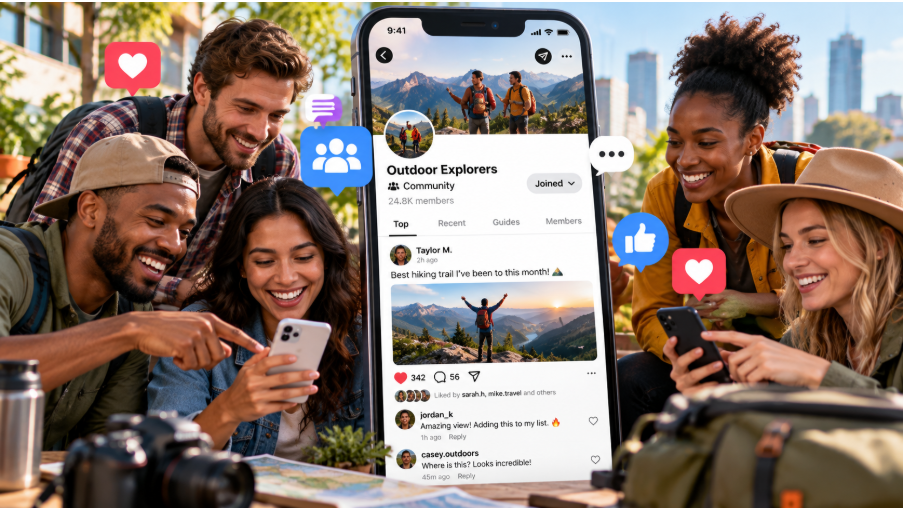

Let’s face it — Facebook notifications can feel relentless. From group updates to friend requests, the constant pings can overwhelm anyone. If you’re wondering how to stop Facebook notifications and reclaim your peace, you’re in the right place. This guide will walk you through simple steps to customize or silence those alerts, whether on your phone or desktop. With a few adjustments, you can enjoy Facebook on your terms without the nonstop interruptions. Ready to dive in? Let’s explore practical tips to manage those pesky notifications effectively.
Subscriberz · Mastering Facebook NotificationsFine-Tune Notification Settings
One of the easiest ways to stop Facebook notifications is by tweaking your settings. On the desktop, click the dropdown arrow in the top-right corner, then select “Settings & Privacy” followed by “Settings.” Head to the “Notifications” tab on the left. Here, you can turn off alerts for specific activities like comments, tags, or group posts. Prefer mobile? Open the Facebook app, tap the three-line menu, and scroll to “Settings & Privacy” > “Settings” > “Notification Settings.” You can mute push notifications, emails, or SMS alerts individually. Take a moment to review each category—such as “Groups” or “Marketplace”—and toggle off what you don’t need. This targeted approach keeps you in control without missing what matters.
Use Do Not Disturb or Unfollow
Another great way to stop Facebook notifications is by using built-in features like “Do Not Disturb” or unfollowing. In the app, go to “Notification Settings” and turn on “Mute push notifications,” then choose how long you want silence, for example overnight. On the desktop, this option is under the same “Notifications” menu. Alternatively, unfollow friends or pages that flood your feed without leaving them entirely—go to their profile, hit “Following,” and select “Unfollow.” For groups, adjust settings by visiting the group, clicking “Joined,” and choosing “Manage Notifications” to mute or limit updates. These steps ensure a quieter Facebook experience tailored to your preferences.
Frequently Asked Questions (FAQ)
How do I turn off all group notifications on Facebook?
To stop all group notifications, go to “Settings & Privacy” > “Settings” > “Notifications” on desktop or mobile. Scroll to “Groups” and click or tap it. Toggle the switch to “Off” to disable all group-related alerts. Alternatively, visit each group, click “Joined” > “Manage Notifications,” and select “Off” to silence them individually.
How do I turn off Facebook activity notifications?
To disable Facebook activity notifications, head to “Settings & Privacy” > “Settings” > “Notifications.” Find “Your Activity” (or “Posts”/”Comments” depending on the platform) and click or tap it. Toggle the switch to “Off” to stop alerts about likes, comments, or tags on your posts. You can also adjust specific options like “Email” or “Push” to fine-tune what you receive.