With the shift toward a community-first social media, there is a need for creators to leverage tools and features that nurture community building on IG and other major social media platforms.
Some of the key features on Instagram they can consider are IG broadcast channels and private groups. In this article, we guide you on how IG broadcast channels and private groups work and how you can leverage them to grow your community.
What are Instagram Broadcast Groups?
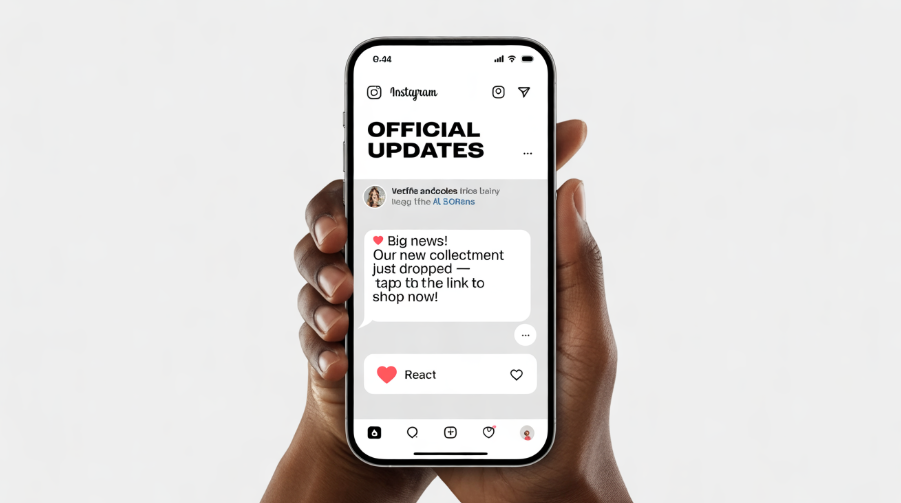
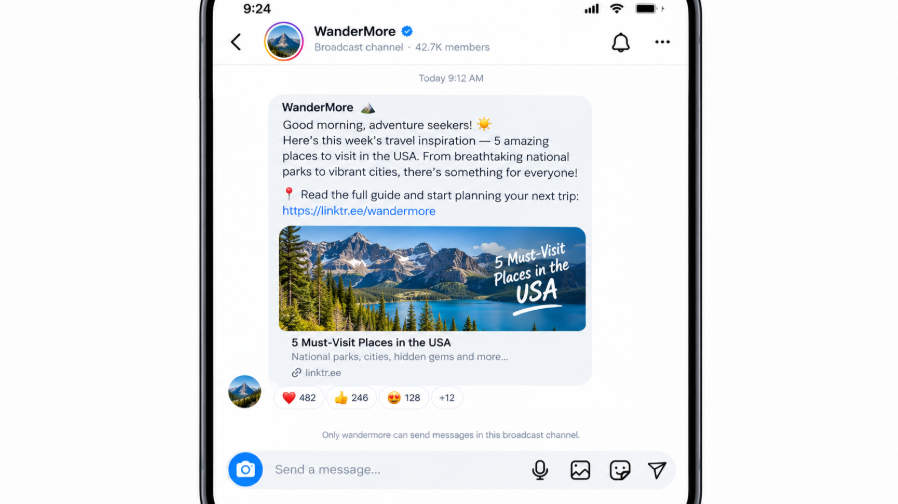
Broadcast groups on Instagram are a feature in professional accounts, either by businesses or creators, that makes it easier for brands to converse with their engaged followers. These work like a special DM group where a brand can share a broadcast message to a group of followers, who can choose to tune in.
The message doesn't only have to be in the form of a broadcast but can be in another format such as text updates, videos, photos, polls, and voice notes. On the other hand, emojis are used by followers to react and vote in the polls, but they cannot post their own messages. That means it's more of a broadcast where the creator or a group admin can broadcast with the followers tuning in.
When you create a channel message, it will appear in the DM of the followers just like normal DM messages. That can be beneficial because it means your broadcast message will coexist with the person’s other DM messages, making it easier for it to get noticed.
The development of this feature was necessitated by Instagram’s own data showing that videos and DMs are shared more in DMs than in Stories. However, the share rate of these visuals is higher in Stories than on the feed, and therefore Instagram aims to meet users where they are more active. It also means that when your content appears in the inbox of your fans, you can be noticed compared to when you post in the crowded algorithms and feed. It can, therefore, be a good strategy for building a loyal audience on Instagram.
Instagram Broadcast Building Tips
Setting up an IG broadcast channel can be a great option for brands looking to share exclusive content or for creators looking to build a niche community. The good news is that the process of setting up the channel can be fast and easy.
Here are some steps for setting up a channel fast and easily:
- Visit the inbox of an IG profile. However, this should be either a Business account or a brand account to create your broadcast channel.
- Start creating a new message by clicking on the pencil & paper icon. After that, choose Create Broadcast Channel.
- Choose a name for the channel and an audience. If the IG channel is time-specific, choose an end date.
- Consider if you would like to add the link to the channel in your bio.
- After finalizing the channel details, tap on Create.
What Creators Can Do in Broadcast Channels
IG channels allow creators to:
- Send photos, videos, voice notes, and messages.
- Get feedback from audiences using the poll feature.
- Add links to connect to a product or a landing page.
- Invite a collaborator to co-host the channel.
- Co-host the channel by going live.
What can followers do:
- Use emojis as responses.
- Participate in the polls.
- Share a channel link with other people.
- Respond to the cue. Their replies are usually visible to the members.
- Mute the notifications, but maintain the subscription.
What followers aren't allowed to do:
- Sending messages on these channels. Only creators can.
- Beginning conversations on the channel.
- See the members of the channel.
With such a broadcast communication structure, the channel remains focused on making announcements instead of the noise associated with group conversations.
How to Market an IG Broadcast
Just like other features on Instagram, the broadcast channels don't have a discovery tab, and therefore it's the role of the brand to promote them actively. Use the following tips to drive channel subscriptions:
- Add the broadcast to the channel. In your bio, the channel can appear as an icon with the look of a speech bubble. Ensure that this is visible and can be referenced in the bio to drive user participation.
- Use launch notifications. After creating a channel, your followers will be automatically invited. You can build on the momentum by promoting the channel launch.
- Share it to Instagram Stories. Add a link sticker with the channel's invite link so followers can join in one tap.
- Send some direct invites. You can DM the link to the most engaged creators, followers, and VIP customers
Since Instagram doesn't have a centralized place for promoting channels, promoting requires you to understand where your followers can visit.
What are Instagram Groups?
Instagram groups, also known as Group Profiles, are a feature enabling users to share a group message. It works in the same way as Facebook Groups, allowing users to share content amongst their network. Combined with other features, it makes it possible for creators and brands to share content with their close-knit communities. It can, therefore, be a good feature for driving engagement on IG and ensuring a more personal relationship with potential clients or customers.
Use Instagram groups to provide exclusive content with your target audience, check in with your IG community, find clients, and get new ideas or insights from other creators.
Steps in Creating a Group Profile
When you create an IG group, you automatically become the group admin. Once you are inside the IG app, you will need to use these steps to view where the group profiles appear:
- Visit your IG profile, and tap the Create icon marked by a + sign.
- Tap the Group profile option before clicking it.
- A new screen will pop up prompting you to add a username, website, group, image, and description.
- You will have two options under Settings to toggle on and off. Turn on Private group profile & choose the Approve posts option. This will provide you with the option of approving posts before they get sent to the group.
Adding Group Members
If you are the creator of the group, you can add another member to the group by clicking on the invite button on the group profile. You will have the option of searching for members, or you can select from the suggested profiles. Instagram enables you to add up to 5000 members. After the user joins the group, you can now change settings to include them as Admins. You can add up to 20 admins.
How to Join an Instagram Group
If you want to join an Instagram group, you can do that in two different ways. One of them is to ask to join the group or to accept the invitation to the group. If your goal is to join the Group profile, visit the Explore Page and choose the group name. If you are unaware of the group you would like to join, you can use certain topics or keywords related to what you are searching for.
Tap on the option to join, and you will have your request go to the group admin. After the request is approved, you become a group member. If someone has invited you to join a group, you will see a notification popping up in the direct message allowing you to choose whether to join the group or not.
How to Receive and Post Content on Groups
After finding the kind of group you want to join, you will be able to see the posts sent by other group members. This will also help show your creativity and even share content with the other group members. You can see the group post in your feed with the group name and the name of the person who shared it, but the post will not appear in your personal profile.
If you want to add content to the group:
- Go to the group page and tap the plus (+) icon.
- You will see a disappearing drop-down menu, allowing you to choose what kind of content you want to create: either Stories, Posts, or Reels.
- You can add a caption to the post, tag another user, and even choose a location.
- Select whether the post should be shared to the group or profile.
- Once you are done, click on Share.
Depending on the group settings, the post may need to go through an approval process. However, after the content has been approved, you can then like, comment on it, save, or even share it as you do with other posts.
Final Thoughts
IG broadcast channels and private groups provide creators with an opportunity to have and grow a niche community. These have proven to be important tools in an era when community-driven platforms and private groups have become popular. This can be helpful in an era when social media platforms are focusing on accounts that drive engagement. Therefore, use our detailed guide to leverage them.